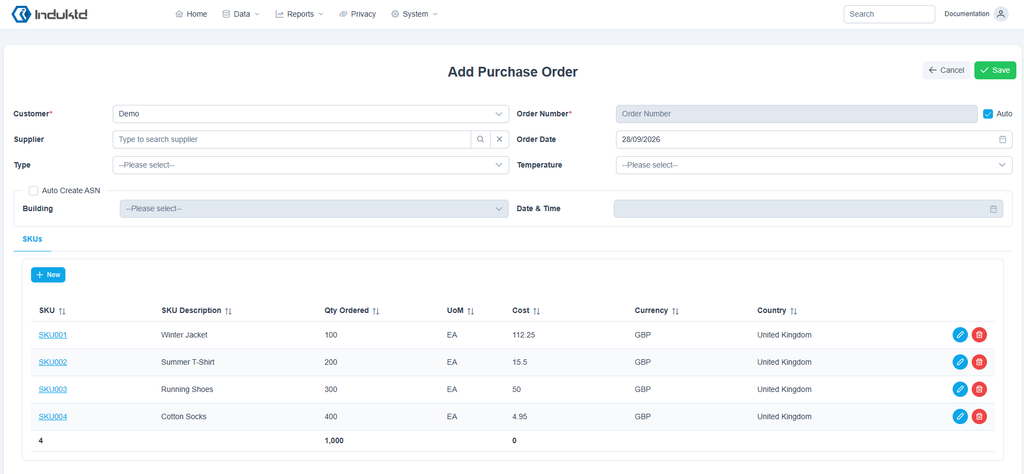
A Purchase Order (PO) is an authorisation of the purchase of goods that specifies the types, quantities and agreed upon price. POs are created by the buyer before the transaction to request goods or services from a supplier. POs within Induktd are then connected with an Advance Shipping Notice (ASN), once it is agreed and booked in to receive the ordered goods. This allows warehouse teams to schedule staff and equipment to receive the purchase order into stock and know when and what to expect within the shipment. Below are steps that take you through the process of how to add a PO, to see how it transitions to an ASN see https://docs.induktd.com/documentation/create-asn-from-purchase-order/.
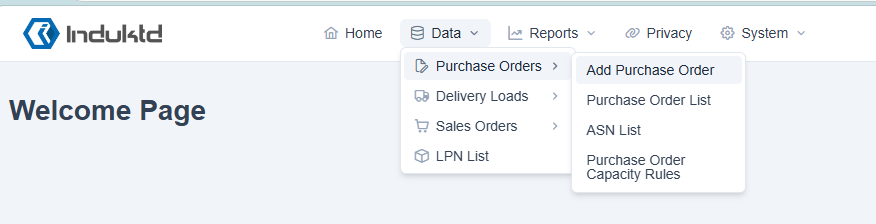
Select the “Add Purchase Order” option from the main menu to get started:
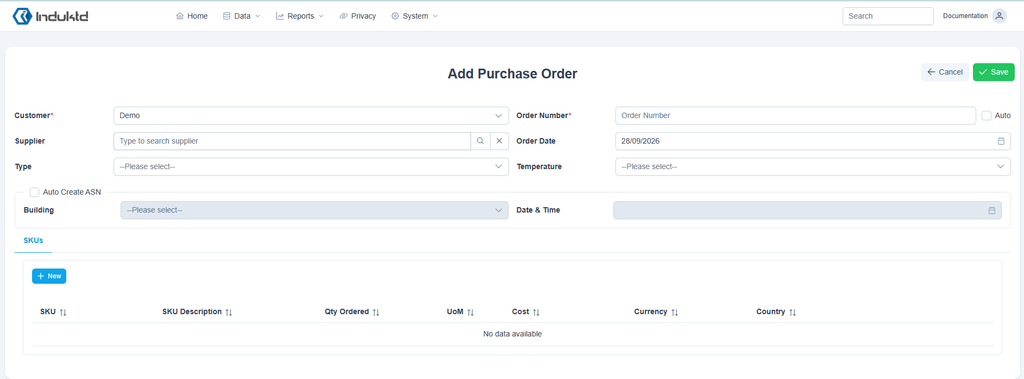
Select your supplier if applicable and enter a unique order number or select the auto order number generator option by ticking the auto box next to the order number field:
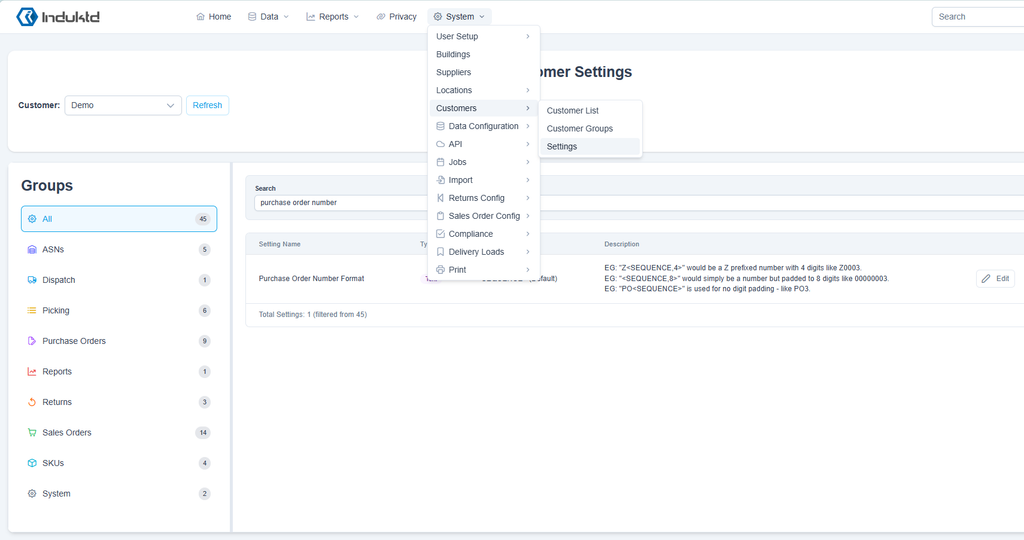
The auto Order Number generator feature is customisable and allows for various order number styles within the customer settings
Click “+ New” for the SKUs section to add at least one SKU to the PO:

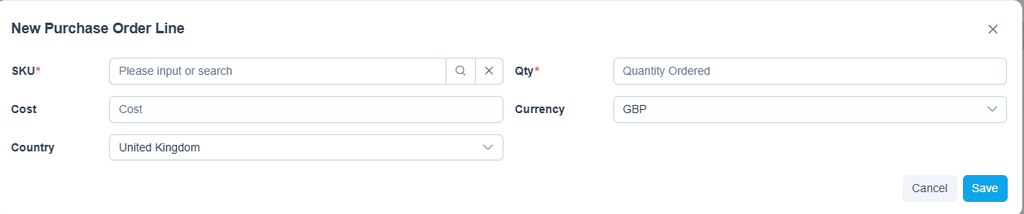
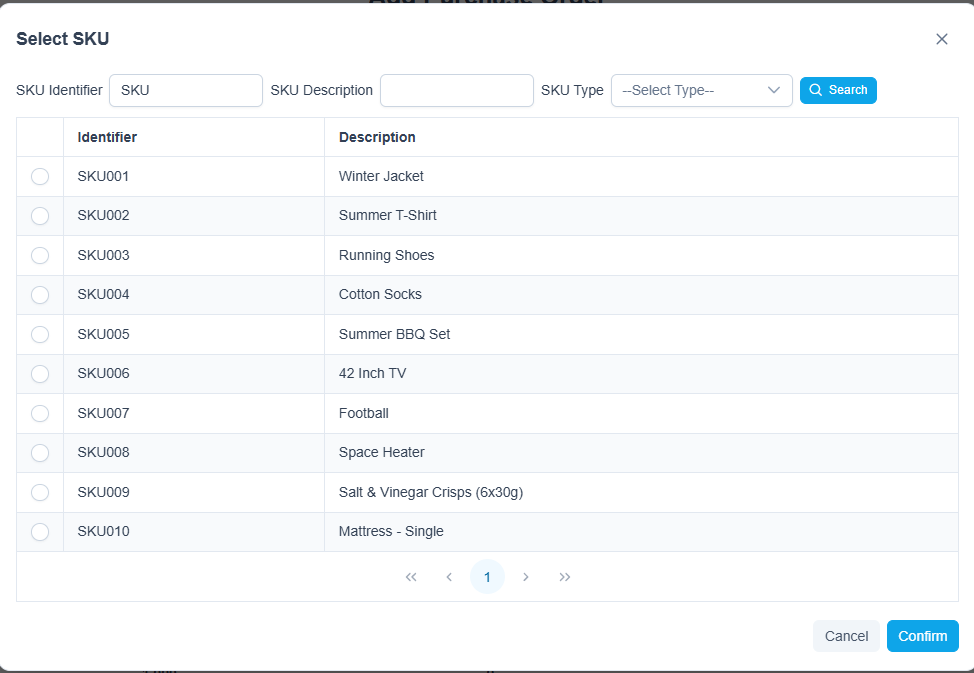
You will need to select or directly input a SKU using the SKU selection option or typing in the SKU field. Click the magnifying glass to open SKU search feature:
Search and / or select a SKU then click confirm to add:
At a minimum, you need to enter a qty. All other fields are optional:

Once you have added the SKU lines needed you will then, click “Save” to create the order: